

Caffeinate your Mac to prevent it from sleeping
TL;DR
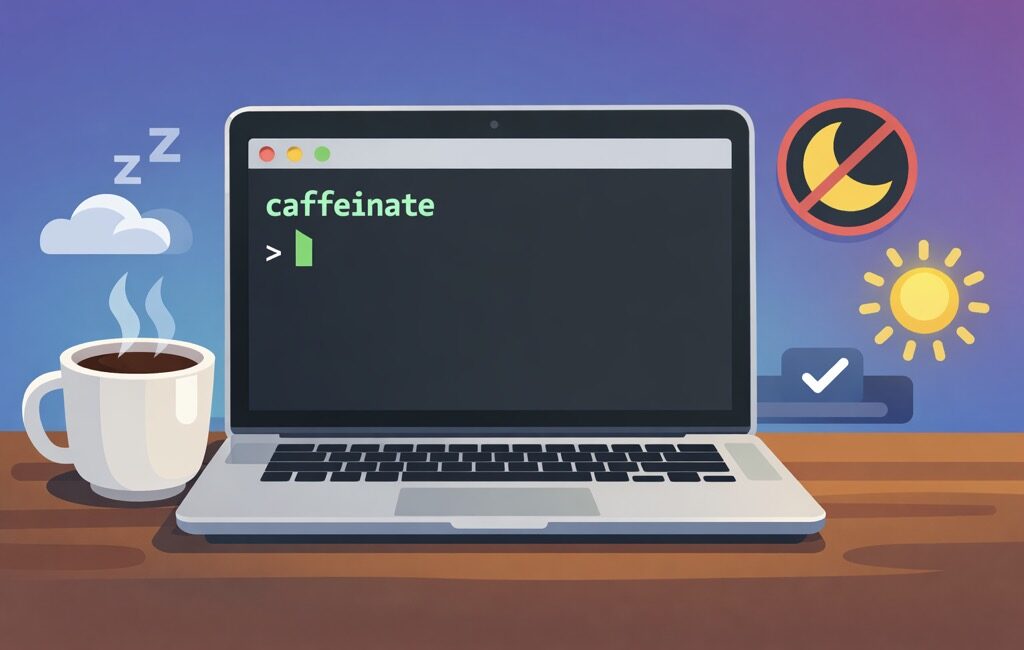
I’ll show you how to use macOS’s built-in caffeinate command to keep your Mac awake:
- until you stop it
- for a set amount of time, or
- only while a long-running command is executing
No additional apps that you need to install, no menu bar junk, no "why is my Mac sleeping again?!" drama.
Why you’d care about caffeinate
If you’ve ever kicked off a long download, rsync backup, Docker build, video export, or "I’ll just run this migration quickly" job… and then came back to find your Mac politely sleeping like an innocent kitten — you already know why this matters.
macOS has an official tool for this, and it’s been sitting right under your nose:
caffeinateIt’s basically the Terminal equivalent of "No, macOS, we are not done here."
Option #0: The simplest possible usage
Open Terminal and run:
caffeinateThat’s it. Your Mac won’t go idle-sleep as long as this process is running.
To stop it press Ctrl + C
Option #1: Keep the Mac awake for a fixed amount of time
Sometimes you just want to keep your Mac awake for 2 hours (and keep that Slack icon 🟢 hey, I don’t judge), and then you’d pass in the -t parameter (which indicates seconds):
caffeinate -t 7200That’s 2 hours (60 60 2 = 7200). Yes, we still count seconds like it’s 1999.
A few common ones:
- 30 minutes:
1800 - 1 hour:
3600 - 2 hours:
7200 - 4 hours:
14400
Option #2: Keep the display awake as well
If for some reason you want to prevent your display from dimming, use the -d switch:
caffeinate -dOption #3: The best trick — keep Mac awake only while a command runs
This is the chef’s kiss use case; instead of running caffeinate separately, wrap your long-running command with it:
caffeinate -i your_command_hereExample: big rsync backup:
caffeinate -i rsync -av ~/Pictures/ /Volumes/Backup/Pictures/Example: long npm build:
caffeinate -i npm run buildExample: running tests that take forever because you’re "testing thoroughly" (and definitely not because of that one integration suite):
caffeinate -i ./run-tests.shWhen your command finishes, caffeinate stops automatically. No cleanup required. No "wait, did I leave it running overnight?" paranoia.
Option #4: Run caffeinate in the background
If you want to keep your Terminal usable:
caffeinate -d -i &That & sends it to the background.
Want to see it?
ps aux | grep caffeinateWant to stop it?
Option A: bring it back to foreground and stop:
fgthen hit Ctrl + C
Option B: kill it by PID (you’ll see PID in the ps output):
kill <PID>Handy flag cheat sheet
Here’s the "print this on a sticky note" version:
-
Keep system awake until stopped:
caffeinate -
Keep awake for 1 hour:
caffeinate -t 3600 -
Keep display awake:
caffeinate -d -
Keep awake while a command runs:
caffeinate -i -
Display + system, background:
caffeinate -d -i &
Bonus: a tiny alias (because typing is hard)
If you find yourself using it often, add this to your ~/.zshrc (or ~/.bashrc):
alias awake='caffeinate -d -i'Reload:
source ~/.zshrcNow you can do:
awake rsync -av ~/Stuff/ /Volumes/Backup/Stuff/And voilà — your Mac stays awake, your command runs, and you look like you totally planned it this way.
Hope this was useful, and see you next time 💪




Leave a Comment